
How to send company email from ChatGPT with Banger

You can send company email from ChatGPT by connecting Banger as a custom connector through MCP. Authorize Banger with OAuth, select the right company mailbox, and ask ChatGPT to prepare the message. Sends that workspace policy gates wait for a person in Banger Approvals; the agent cannot approve them.
This workflow is for operating your product’s email, including messages from a fresh company domain. Banger also gives the connected assistant tools for domain setup, mailboxes, contacts, Broadcasts, Journeys, and delivery checks. You can start with one email before asking it to run a larger launch workflow.
Before you connect
Have your Banger workspace available and know which product and domain you want to use. If the domain is not ready, make setup the first task. An assistant can write a convincing From address without that address being configured, so do not skip the readiness check.
You also need a ChatGPT account and workspace that allow the relevant custom MCP connection. Availability depends on account and workspace policy. OpenAI’s connection instructions describe enabling developer mode and adding an MCP server. Use those instructions for the current client interface.
Steps: send your first message
1. Add the Banger MCP server
Follow the Banger MCP setup guide to add Banger as a connector or custom connector. Enter https://api.bangermail.com/mcp as the remote server URL, then complete OAuth. Banger supports dynamic client registration; follow the authorization prompts to connect.
Review the requested permissions and the workspace you are authorizing. Connect with the access needed for the task. If a tool is unavailable because of a scope or workspace setting, resolve that specific issue rather than asking ChatGPT to work around the boundary.
2. Ask ChatGPT to inspect readiness
Begin with: “Use Banger to identify my product mailbox and domain readiness. Tell me what is missing before preparing a send.” Check that its response names the intended domain and mailbox.
If DNS setup is incomplete, use the new-domain walkthrough. Banger can prepare records and guide verification, but the publishing step depends on available DNS access. The assistant should distinguish a record that needs publishing from a record that is already correct but still being verified.
3. Provide the message facts
For a first test, use a recipient you control. Supply the recipient address, purpose, subject direction, and any product facts the message must contain. Ask ChatGPT to keep links and claims within that supplied material.
Here is a useful starting prompt: “Prepare a short company email to my test address confirming that the product is ready for review. Use the selected mailbox. Show me the exact recipient, subject, body, and links before sending. Do not add promotional claims.”
This is a task instruction, not a substitute for Banger’s policy. Configure the workspace’s send approval policy to match the review boundary you need.
4. Review any required Approval in Banger
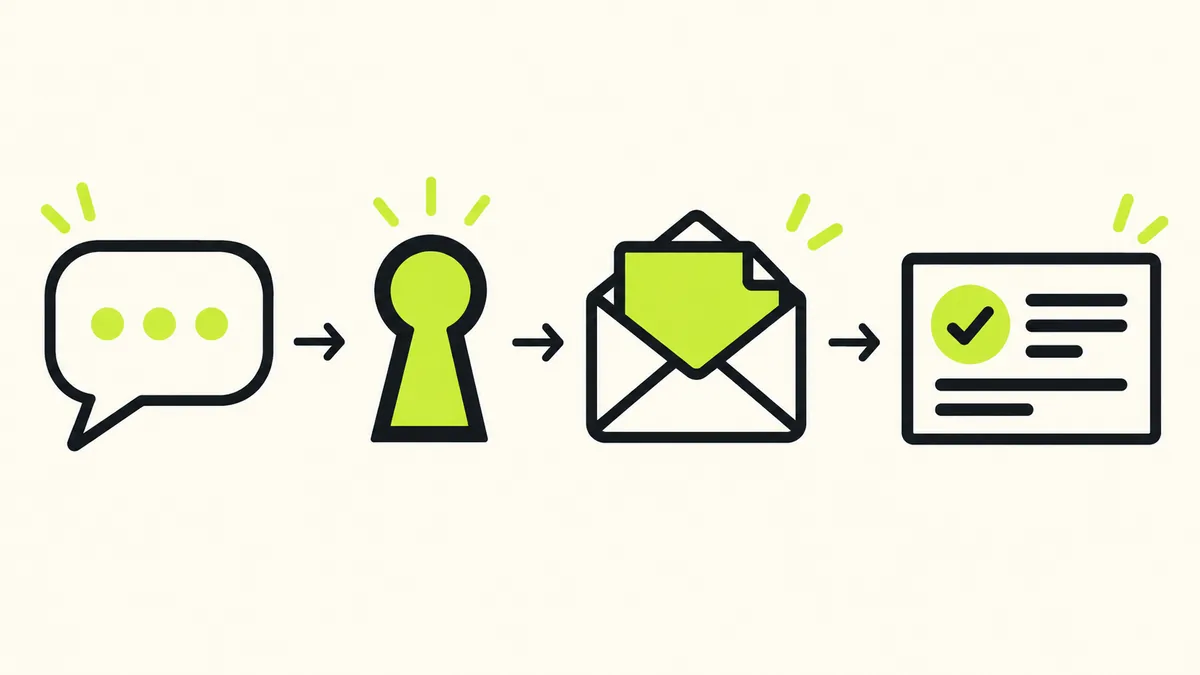
When a send is gated by workspace policy, it becomes an Approval in the Banger web app. Open it and inspect the actual proposal. ChatGPT can explain why it is waiting, but it cannot approve the send for you.
Check the recipient address character by character on the first send. Read the visible sender name and reply address. Open the links you intend recipients to follow. These checks are especially valuable when the conversation contains examples alongside production details.
5. Check delivery status
After the send proceeds, ask ChatGPT to inspect Banger’s delivery status and logs. Do not treat “I prepared the message” as “the message was sent.” A pending Approval, a refusal, and a send result call for different next steps.
If a send returns no response, inspect its status before trying again. Then inspect the email at your test address. You are testing the whole workflow, including how the message appears to a recipient.
Move from one message to a launch
Once a test is working, pick the appropriate email type. A product-triggered account message belongs in transactional email. A newsletter or announcement belongs in a Broadcast. An automated welcome flow can be a Journey. Read transactional versus marketing email before asking the assistant to choose on your behalf.
For marketing, provide the audience and consent source. A signup or imported contact is not permission to send any message you can imagine. Banger requires confirmed consent for subscribed Broadcast recipients and requires your company name and postal address in the marketing footer.
For a Journey, ask ChatGPT to draft every step, explain the intended audience, and leave activation for human review. Journey activation always becomes an Approval that a person decides. The welcome-sequence guide includes an example brief you can adapt.
Plan the volume before announcing
Free includes 3,000 emails a month and a 100-email daily cap. Sends above the daily cap go out the next day. If your announcement depends on a particular day, account for that behavior before preparing the audience.
Paid plans refuse sends above the monthly allowance until renewal or upgrade, with no overage or usage fees. All plans include free, unlimited inboxes. Check pricing for the plan that fits your expected sending and storage needs.
Your application can also use the API for repeatable product events. ChatGPT can help operate the email setup while the application owns the event that calls for a receipt or account notice. Keep the source of the event and the assistant’s preparation role clear.
FAQ
How do I revoke ChatGPT’s access?
In the Banger app, open Settings → Connected apps, find the ChatGPT connection, and choose Revoke. Confirm the revocation.
Can ChatGPT send without a Banger Approval?
Send approval depends on workspace policy. Do not assume every send is gated. Journey activation always requires a person to decide an Approval.
Can I use an address on my new domain?
Yes, after the required domain and mailbox setup is ready. Ask the assistant to inspect readiness before it prepares a production send.
What if ChatGPT says the email is waiting?
Ask it to identify the actual status. It may need human approval, setup work, or capacity. Resolve the reported reason instead of repeatedly asking it to send again.