
Broadcasts
Review, test, schedule, and send
What must be ready before a Broadcast sends, test sends, scheduling, approval, and pausing or cancelling.
In this guide 6 sections
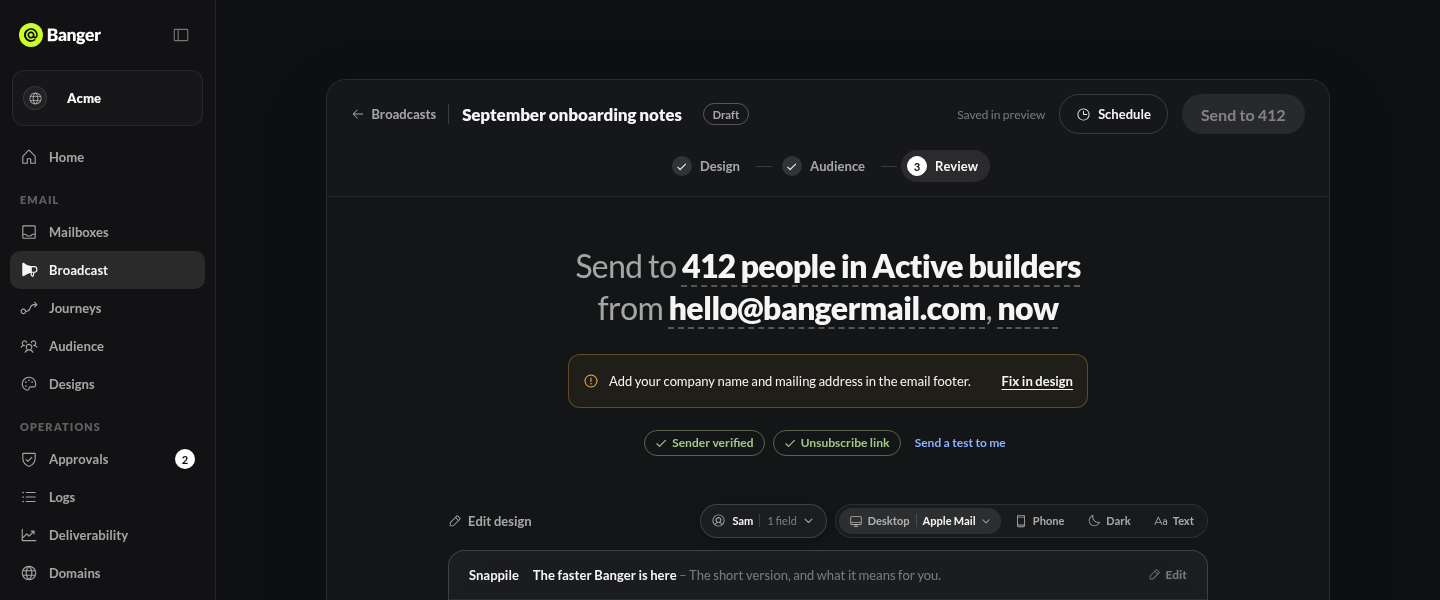
The last step, Review, shows who gets the Broadcast, from which address, and when.
What must be ready
Send stays off until all of these pass. Each has a button to fix it.
- A sender on your connected domain, marked Ready to send
- A name for the Broadcast
- An audience with at least one person
- An unsubscribe link and your company name and mailing address in the footer
- A subject and no empty links
- Enough emails left in your plan for the whole audience
Translations don’t block sending. Readers in other languages get the email as soon as theirs is ready.
Send a test
Choose Send a test to me. Pick a version (for A/B tests), and fill fields with sample data, fallback text, or a real contact’s data. Tests go only to you, a product mailbox, or a subscribed contact.
Schedule
Choose Schedule, then In an hour, Tomorrow 9:00, Monday 9:00, or pick a time. Times use your browser’s time zone. Everyone gets it at the same moment. Send now instead cancels the schedule.
Send
Press and hold Send to N (or Schedule for …).
- When you send from the app, that counts as the approval.
- When your AI or the API sends, it waits in Approvals if your policy requires it. The default is approval for more than 50 recipients. Requests expire after 24 hours.
Large Broadcasts on the Free plan go out over several days because of its 100-a-day limit.
Pause, resume, or cancel
- Pause stops a scheduled or sending Broadcast. Resume continues it.
- Cancel stops it for good. People who already got it keep it, and a cancelled Broadcast can’t restart.
Try it with your AI
Check my draft Broadcast’s readiness, send a test to me with a real contact’s data, and schedule it for Tuesday 9:00 New York time.