
Audience
Import contacts
Bring a CSV or Excel file into Banger: column matching, status rules, languages, and consent.
In this guide 4 sections
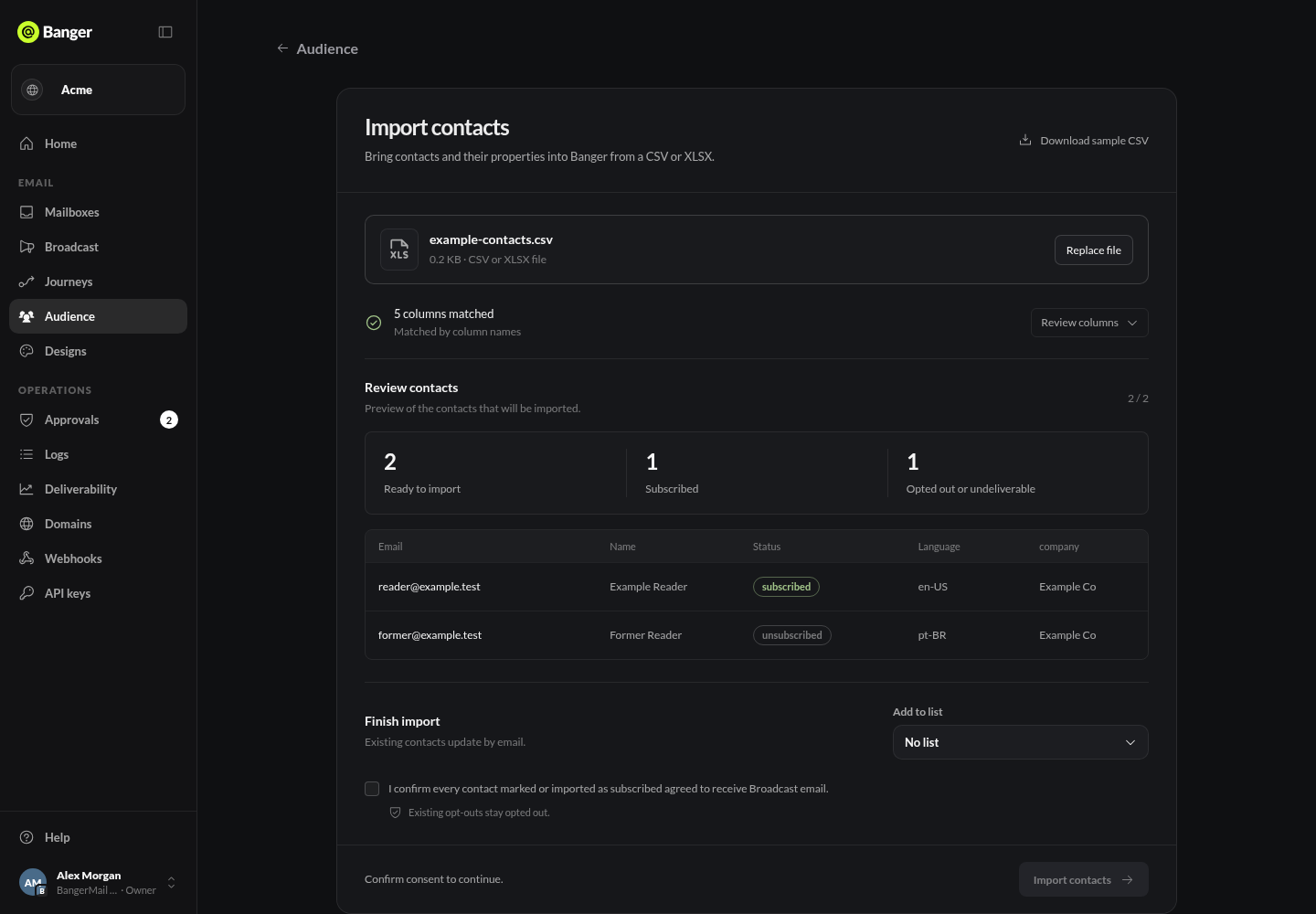
Import a file with Audience › Import contacts. Contacts are matched by email: existing contacts are updated, new ones are added.
Limits
- CSV or XLSX, up to 5,000 rows and 100 columns. For a workbook, pick the sheet.
- Need a template? Use Download sample CSV.
Import a file
- Choose Import contacts and select your file.
- Check the column matching. Banger matches columns from your last import, by AI, or by column name, and says which. Choose Review columns to change a match or a field type, or Use these columns to accept.
- If the file has a language column, check Languages in this file. Use language codes or names (
pt-BR, “Portuguese”). A country is not a language. Banger flags values it can’t read. - Optionally choose Add to list.
- Confirm that every subscribed contact agreed to receive Broadcast email, then run the import.
- Follow progress in Audience › Imports.
Status rules
- A status column must say subscribed, unsubscribed, bounced, or complained. Rows with other values are skipped.
- If values conflict, the most restrictive status wins.
- An import never resubscribes someone who opted out.
Try it with your AI
Import the attached CSV into the Customers list. Show me the column matching and the counts before you run it.