
Broadcasts
Create a Broadcast
One email to an audience, like a newsletter or launch. Start, Design, Audience, Review.
In this guide 6 sections
A Broadcast is one email sent to an audience once, like a newsletter or a launch. For emails that send automatically after a signup or purchase, use a Journey.
Open Broadcast › Create broadcast. The draft saves as you go.
1. Start
Pick what the email is for: announce news, what shipped, newsletter, event invite, offer or sale, waitlist update, ask for feedback, or something else. Then either:
- Copy prompt & open your AI. It writes the draft, and Banger opens it as soon as it’s saved.
- Pick a design instead to start from a template.
2. Design
Edit the subject and content in the editor. The footer must include your company name, mailing address, and unsubscribe link. To compare versions, choose A/B test this (A/B tests). Choose Continue.
3. Audience
- To: All subscribers, one list, or one segment. Banger shows how many people it reaches and how many unsubscribed or bounced contacts are left out.
- Personalization shows how many recipients have each field you used.
- From: pick a sender marked Ready to send. Without a connected domain, no address can send Broadcasts.
4. Review
Review reads as one sentence: who it goes to, from which address, and when. Anything still blocking the send is listed with a button to fix it. See Review, test, and schedule.
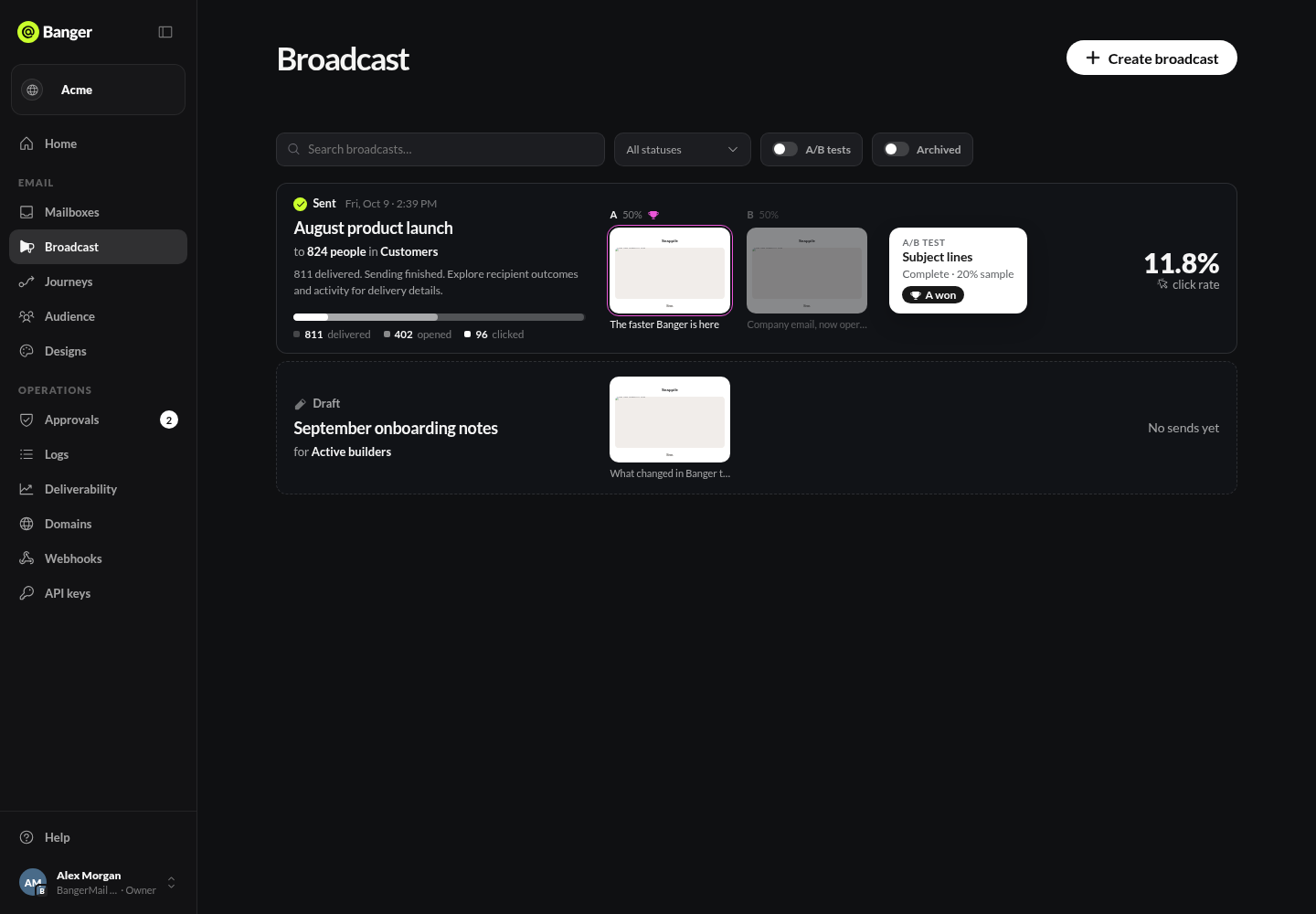
Find Broadcasts later
Search the list, filter by status, or show only A/B tests or Archived. Archive hides a sent Broadcast. Delete is only for Broadcasts that never sent.
Try it with your AI
Draft a Broadcast announcing our new feature to the Active customers segment. Use our brand, one clear call to action, and show me the audience count. Don’t send it.