
Getting started
How do I send my first Broadcast?
Send a real Broadcast to your Test list, which holds only you, and see exactly what your customers will get.
In this guide 4 sections
Every new product comes with a Test list that holds one person: you. Send your first Broadcast to it. You get the real email in your inbox, and nobody else does.
Before you start
Connect your domain first. Broadcasts send from your own domain, so until it’s connected Banger shows This address can’t send Broadcasts yet. Your draft is saved in the meantime.
Send it to your Test list
- Open Broadcast and create a new one. Describe what the email is for, or choose Pick a design.
- In Design, write the subject and message. The footer needs your company name, a mailing address, and an unsubscribe link. Banger won’t send a Broadcast without them. Choose Continue.
- In Audience, under Send to, open Lists and choose Test list. It shows 1 contact. Don’t leave it on All subscribers: once you import contacts, that means everyone.
- Under From, pick an address marked Ready to send, then choose Continue.
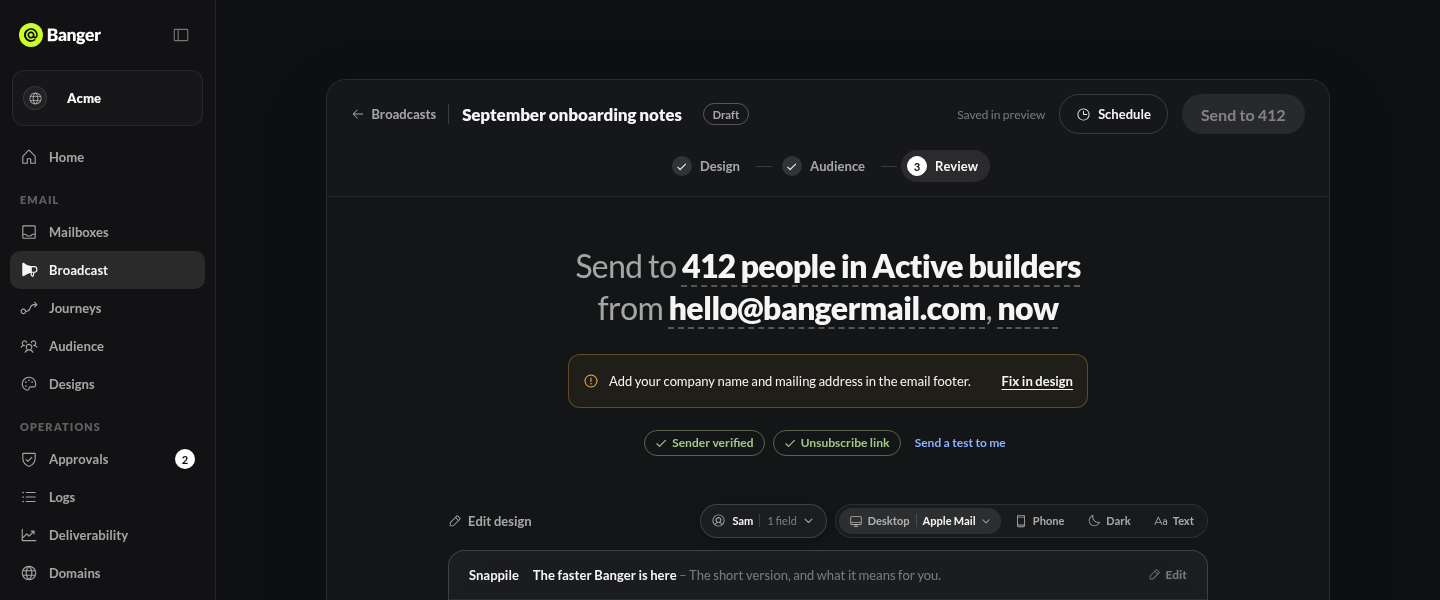
- In Review, give the Broadcast a name and check that Sender verified, Unsubscribe link, and Mailing address are all ready. Then send it.
- Open the email in your inbox. Check the subject, the links, and how it looks on your phone.
When it looks right, import your contacts and send the next one to them.
Common problems
- I don’t see a Test list. Products created before the Test list existed don’t have one. Create a list, add only yourself, and use that.
- Send is disabled. Review names what’s missing: the sender, the footer, or the audience. Fix that item and Send turns on.
- The email hasn’t arrived. Check spam or junk, then open the Broadcast to see its status. Don’t send it again while the first one is still sending.
Try it with your AI
Create a short Broadcast introducing our product, using our brand. Send it only to my Test list, show me the sender and the audience count first, and wait for my go-ahead before sending.