
Journeys
Build a Journey
Emails that send themselves: a trigger, then emails, waits, and checks, with a goal that measures success.
In this guide 5 sections
A Journey sends emails automatically, to each person, when something happens: they sign up, join a list, or your app sends an event. It can be one receipt or a whole onboarding series.
Create one
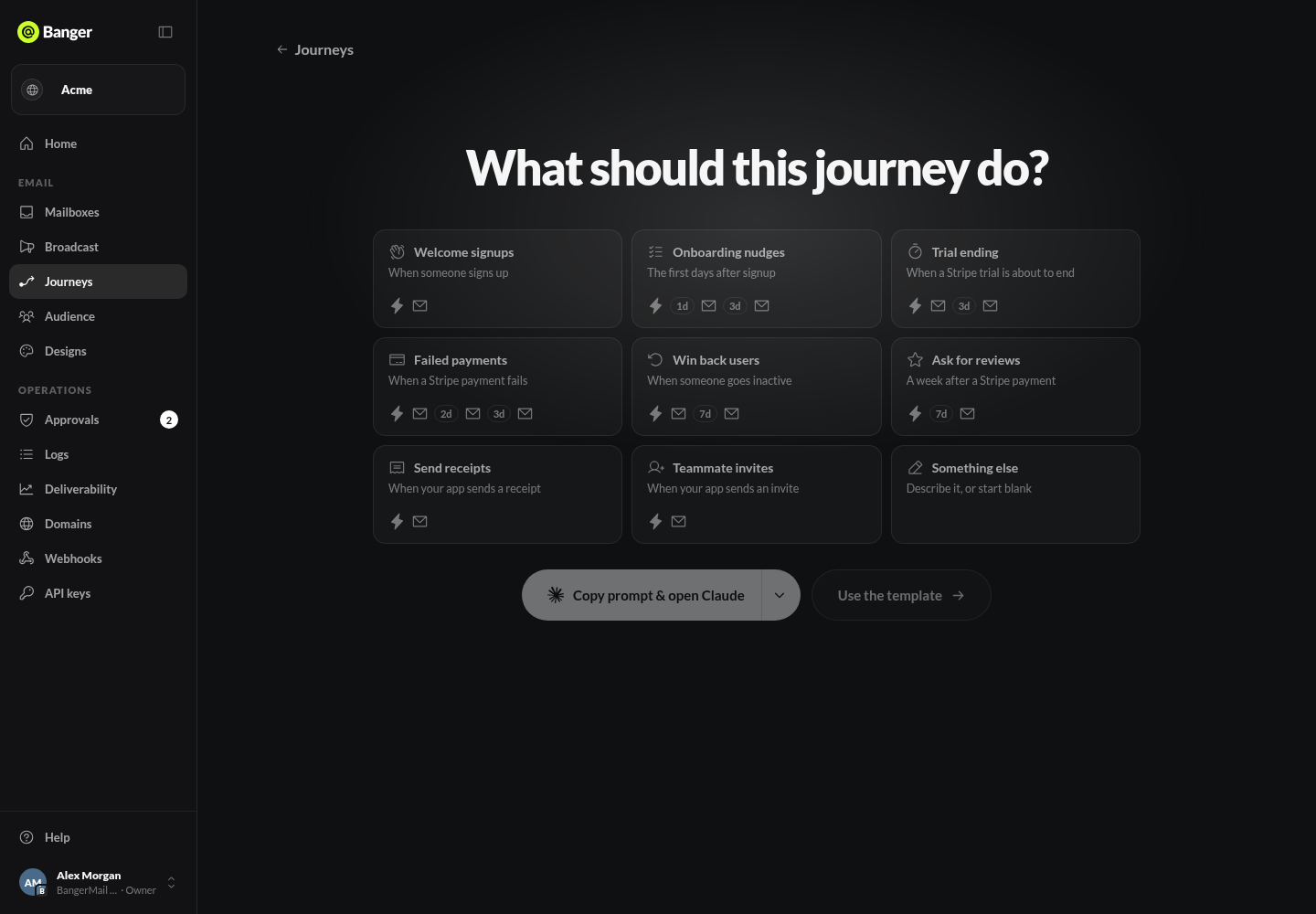
Open Journeys › Create journey and pick what it should do: welcome signups, onboarding nudges, trial ending, failed payments, win back users, ask for reviews, send receipts, teammate invites, or something else.
- Copy prompt to your AI. It builds the Journey as a draft, never turns it on, and Banger opens it when it’s saved.
- Use the template to start from a ready-made flow in your brand, or Start blank.
The editor
A Journey reads top to bottom:
- Trigger: who enters, and when. See Triggers.
- Steps: emails, waits, checks, and A/B splits. Use + between steps. See Steps.
- Goal: what counts as success, like a purchase or a reply. Reaching it ends the Journey for that person.
The draft saves as you go. If a save fails, your edits stay on your device and Retry save appears.
Emails in a Journey
Choose Design this email on an email step. Each email has a type:
- Product: service emails, like receipts and onboarding. The default.
- Marketing: promotional. Adds the unsubscribe link and mailing address. Journeys triggered by a list or segment always use Marketing.
Send a test sends one email marked [Test] to your mailbox, with sample data. It doesn’t enroll anyone.
Settings
Open the Journey’s settings to choose the sender address and where replies go. Replies land in that mailbox and stop the Journey for that person.
Try it with your AI
Build a welcome Journey for people joining the New customers list: a welcome email now, a tips email after 3 days, and a goal of first purchase. Leave it off and show me each email.