
Audience
Contacts and fields
What a contact is, the four subscription states, engagement, and the custom fields you use for segments and personalization.
In this guide 5 sections
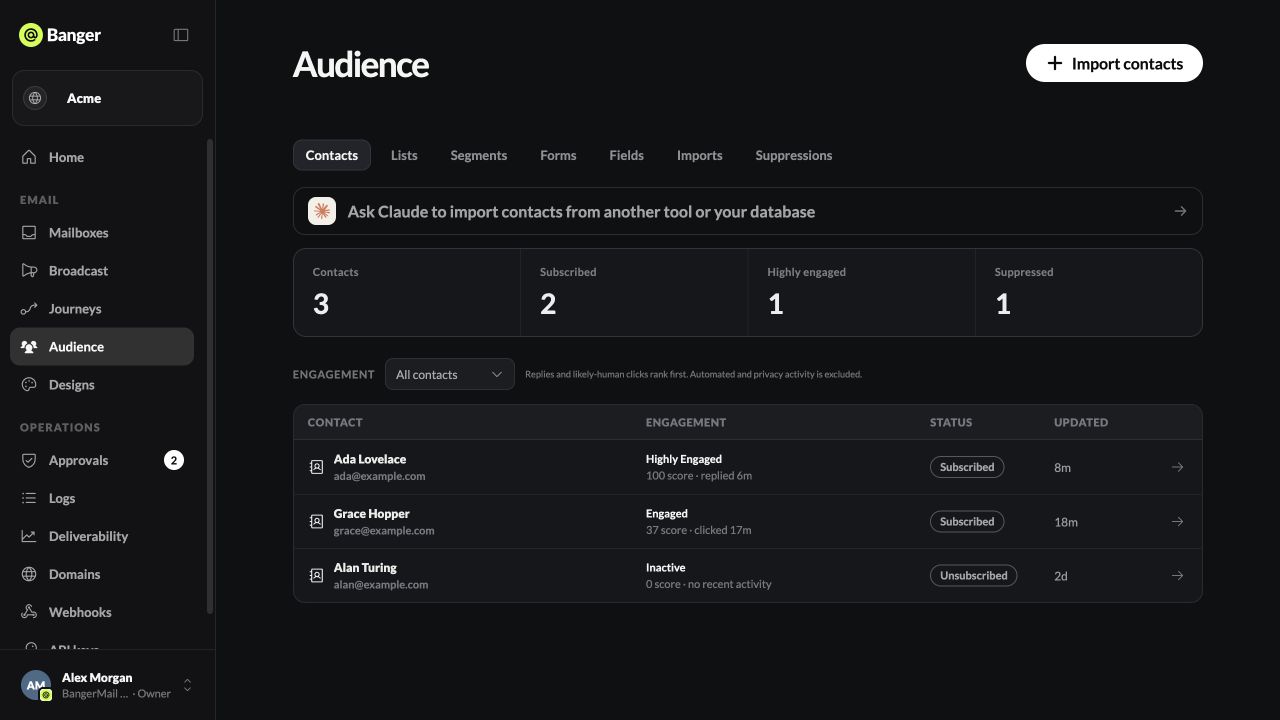
A contact is one email address in a project. Open Audience › Contacts.
States
| State | Gets Broadcasts | How it happens |
|---|---|---|
| Subscribed | Yes | Import, form, API, or you, with consent |
| Unsubscribed | No | They clicked unsubscribe, or you changed it |
| Bounced | No | The address hard-bounced |
| Complained | No | They marked an email as spam |
Unsubscribed, bounced, and complained addresses are left out of Broadcasts automatically. Bounces and complaints also add the address to Suppressions.
Engagement
Each contact has an engagement level: Highly engaged, Engaged, New, Cooling, or Inactive. It counts replies and likely-human clicks. Bot clicks and privacy-proxy opens, like Apple Mail’s, don’t count. Filter the contact list by it.
Edit a contact
Open a contact, then Edit contact. The email address can’t change: it is the contact’s identity. To mark someone Subscribed, you must confirm they agreed to receive Broadcast email. Delete contact removes them from every list and segment.
There is no button to add a single contact in the app. Import a file, use a signup form, or ask your AI.
Fields
Open Audience › Fields. Fields appear on their own as data arrives from imports, forms, your app, or your AI. Here you tidy them up.
- Built in: first name, last name, language, time zone. Language decides which translation a contact gets.
- Types: Text, Number, Yes / no, Date, One choice, Several choices. Changing a type converts existing values.
- Add a field to create one yourself. Add “What it means” so your AI uses it correctly.
- Hide a field to keep it out of pickers without deleting data.
In the email editor, Insert contact field adds a field with a fallback for contacts who don’t have it, written as {{attributes.plan|free}}.
Try it with your AI
List my contact fields, explain any that are unclear, and show how many contacts have each one filled in.